.png.a9ae33b5e5ddb0eb2b142b612b99c428.png)
Lion.Kanzen
-
Posts
25.684 -
Joined
-
Days Won
302
Everything posted by Lion.Kanzen
-
.thumb.png.ce58cea22940c255f5b0a735d5abee36.png)
Sound Edition -Fl Studio - basics
Lion.Kanzen replied to Lion.Kanzen's topic in Tutorials, references and art help
3. Arranging & editing The Playlist sequences all the elements of the project that play to make the final song. The Playlist window is a stack of multi-purpose 'Clip Tracks' that can host Patterns Clips, Audio Clips and Automation Clips. Unlike most other sequencers, the Playlist tracks are not bound to any one instrument, audio recording or even Clip type. You can put any Clip type anywhere and even overlay Clips. Think of Clips as a little like notes in the Piano roll. When the play-head reaches a Clip, FL Studio plays whatever the Clip instructs it to do. Arranging - To use the Playlist you will need to have at least Fruity edition. Arranging with 'Producer edition' - Use the Playlist to hold three types of data, use the Clip source selector (shown below) to select: Pattern Clips (notes) - Patterns generally hold note data for sequencing Plugin instruments, although they can also contain Automation Event data. Audio Clips (audio/loops/samples) - If an Audio Clip already exists, it can be selected from the 'Clip source selector', otherwise you can drag sample/loop/audio files from the Browser directly into the Playlist. Add your own folders to the Browser with the F10 > File settings dialog. Automation Clips (control movements) - Automation Clips move knobs and controls on the FL Studio interface and plugins. To create an Automation Clip Right-click on an interface control and select 'Create automation clip'. Arranging with 'Fruity Edition' - that only has access to the Pattern Clip type that holds note data from Stepsequences or Piano rolls & Event Automation. The length of a Pattern Clip will be determined by the length of the data in it, you are not restricted. Audio - Since Audio Clips are not available in Fruity Edition, to insert track-length audio you can trigger a Sampler Channel from a Pattern using the Piano roll to control the duration of the sample. The note C5 will play the audio at the original pitch. An alternative Clip selection method is to Right-click a tab of the Playlist Clip Focus selector to show Clips of the desired category. Once a Clip is selected, select Draw (Pencil) or Paint (Brush) mode Left-click on a blank area of the Playlist. Dragging in Brush mode will repeat the Clip as you drag horizontally. Once placed, Pattern Clips can be clicked + dragged around (horizontally or vertically) by the name-bar that runs along the top of the clip. The way the clip moves will depend on the Playlist snap settings and zoom level. The Playlist Clip Tracks can be named, colored, moved up/down or muted. These functions are accessed by Right-clicking on the Name area at the start of each track. You can place any Pattern Clip in any Clip Track, or any number of different clips in the same track. Clip tracks are just universal holding lanes for any and all data types. Playback - Make sure you are in Song Mode so that the patterns are played from the Playlist. Otherwise, you will play only the selected pattern. There are Play buttons on the top of the Channel window and Playlist, so you can also initiate a Pattern or Playlist play-back that way. FL Studio is not limited to pattern-based sequencing, you can also enter an unused Pattern Clip into the Playlist and play song-length data (patterns). Thus, FL Studio has the flexibility of being either a 'track-based' sequencer, a 'pattern-based' sequencer, or a combination of the two. 4. Mixing The Channel Rack shows a Channel button for each instrument. The audio from each Channel is sent to one of the Mixer Tracks for effects processing and level mixing. Set the destination Mixer track from the selector to the left side of the Channel Button. The same selector is also available from the Instrument Channel Settings under the Channel Settings icon. Playlist Clip Tracks are not bound to Mixer tracks, rather Channel Rack to Mixer routing decides the Mixer track/s that are used. So Instrument Channels are bound to Mixer tracks, not Playlist tracks. For example, a single Pattern Clip on a single Playlist track, could trigger every Channel Rack instrument, and so all Mixer tracks if they were routed accordingly. If you want to simulate 'traditional' sequencer workflow: Route each Instrument to a separate Mixer track. Use one Instrument Channel per Pattern Clip and use one song-length Pattern Clip per Playlist track. Mixing - Sound from the instrument channels is routed to the Mixer using the Channel settings Mixer TRACK send (as shown above). Use the Mixer to set levels and add Effects (FX) such as reverberation (reverb), chorus and delay. See the page Levels, Mixing & Clipping for more detailed Mixing advice, and in particular the section Making tracks louder! (and good) for some tips on getting a great 'commercial' sound. Almost all aspects of mixing are automatable, so fader movements and knob changes become part of the overall performance. The Mixer is also the place where external audio from a microphone, guitar or synthesizer can be recorded along with the internal instruments. The recorded sound is displayed in the Playlist as an Audio Clip. NOTE: Routing Instrument Channels to Mixer tracks - The most efficient way to route one or more Channels to Mixer tracks is to: 1. Left or Right-click the Channel Selector LED's to the right side of each Instrument Channel you want to route (Right-clicking allows multiple selections). 2. Right-click the target Mixer track and select 'Link selected channels > to this track' from the pop-up menu. OR use 'Link selected channels > starting from this track' to assign multiple Channels to multiple Mixer tracks. 5. Exporting audio Exporting/Rendering - The final mix is exported from FL Studio to a .wav, .mp3 or .ogg file format by selecting the export option from the file menu in a non-real time process called rendering. CD? If you want to make an Audio CD you need to render to 16-Bit, 44.1 kHz .wav files. FL Studio does not burn audio CDs so you will need to use a 3rd party Audio CD burning application. -
Sound Edition -Fl Studio - basics
Lion.Kanzen replied to Lion.Kanzen's topic in Tutorials, references and art help
2. Composing & sequencing Composing - Musical notes and chords can be played live via a controller keyboard or entered manually in the Piano roll (Right-click the Channel buttons to open the Piano roll) OR use the default Step Sequencer to trigger percussion samples. There is a Step Recording option on the Snap Panel too. When editing patterns, make sure you are in Pattern Mode so that when you press play the currently selected pattern is played. To the right of each instrument button in the Channel window is either a step-sequencer display (rows of squares) or a mini-preview of a Piano roll (green lines). Step Sequencers and Piano rolls are interchangeable for each Channel. New instruments start with an empty Step Sequencer pattern by default. Step Sequencers and Piano rolls hold the note data only for the instrument channel they are associated with. Step-sequencer 'steps' are activated by by Left-clicking the squares to turn them on, or Right-clicking to turn them off (great for percussion programming). To open an existing Piano roll, Left-click directly on the mini-preview window. Changing patterns - Left-click hold and slide up/down on the Pattern Selector (shown above) to change the pattern number and work on a new pattern. Up to 999 unique patterns can be created. The complete stack of channel instruments and their Step sequence/Piano roll data is a single pattern. In the example above, Pattern '1' consists of a Harmor Channel being played by a Piano roll and a Step Sequence Hat Channel. In the example below Pattern 2 consists only of step-sequence data playing the Kick & Hat channels. As you step through the patterns with the Pattern Selector, the appearance of the channel window will change to reflect the note data associated with each pattern. The length of each pattern can vary and is determined by the number of bars spanned by the longest data in any one of the channels. Piano rolls may be of any length. The 'LCD' window showing '--' in the top left corner of the Channel window changes the number of Steps in the pattern (4 to 64 are possible) -
Creando samples
-
Dice musical pero se puede hacer con sonidos.
-
Sound Edition -Fl Studio - basics
Lion.Kanzen replied to Lion.Kanzen's topic in Tutorials, references and art help
https://www.image-line.com/support/flstudio_online_manual/html/basics_workflow.htm This section covers the FL Studio desktop and basic workflow. FL Studio allows you to load instruments and samples, play these live or manually enter the note data, record external sounds (from a microphone for example) and play the whole mix back through the mixer (adding effects). The completed project can be saved ... The FL Studio desktop is based on a number of windows, most of these are movable (with overlap), resizable, zoomable and switchable so if a window isn't visible open it using the Shortcut toolbar (or the function keys as noted in brackets). The main windows involved in FL Studio music creation are - Channel Rack (F6), Piano roll (F7). Mixer (F9) and Playlist (F5). The Browser (Alt+F8) is used to access audio files, plugins & presets (see the File setting options for adding folders elsewhere on your computer to the Browser). NOTE: If you ever need to reset the position of all windows to their default use (Ctrl+Shift+H) or see the View menu options. 1. Instruments The Channel Rack holds instruments (plugins) that create sound and internal generators that control automation. Every pattern has access to all instruments in the rack. So, all patterns have access to all instruments in the Channel Rack. Patterns are not limited to a single instrument as they are in most other sequencers. Music data can come in the form of Step sequences and Piano roll scores. The height of the Channel Rack will change dynamically as you add and remove plugins. The Step Sequencer, (Video Here) is a pattern-based grid sequencer ideal for creating drum loops when Channels are loaded with the native Sampler, that holds a single percussion sample per Channel. Instruments - Instrument plugins make the sounds used in a song and are loaded in the Channel Rack. In the screen-shot above, the instrument interfaces are minimized and can be accessed by Left-clicking on the Channel buttons. Instruments generally fall into two types, software synthesizers that create audio using an internal 'synthesis engine' or sample players that play back 'audio recordings' such as drum loops, percussion samples or instrument samples. There are several ways to load a new instrument, the first two below will auto-name and auto-route the instrument to the Mixer track: Load plugins from the plugin picker - Open the Plugin Picker (F8) then drag-and-drop a plugin on the desired Mixer track. The Mixer track will be auto-named and plugin routed to that Mixer track. You can also double-click an instrument plugin in the Picker OR drag it to the Channel Rack and the instrument will be routed to the Master Mixer track. Load plugins from the Browser - Drag a plugin preset or samples/loops from the Browser to a Mixer track. The Mixer track will be auto-named and plugin routed to that Mixer track. You can also drop it on the Channel Rack and the instrument will be routed to the Master Mixer track. + - Use the Add channel button at the bottom of the Channel Rack. The instrument will be routed to the Master Mixer track. Add menu - Use the Add menu. Replace an existing instrument channel - Right-click on a Channel button and select 'Replace >' from the pop-up context menu. In the case of samples & loops you can also drag these from the Browser to the Playlist (see below). When you drag a sample to the Playlist an Audio Clip instrument is automatically added to the Channel window. Alternatively you can Right-click the sample in the Browser and 'send' it to one of the instruments in the pop-up list. Add your own folders to the Browser with the F10 > File settings dialog. To open an instrument interface Left-click on the Channel button. Think of the Channel window as a rack of synthesizer/sampler modules that can be routed to any one of the 99 Mixer Tracks using the Channel settings FX (Mixer Track Selector -
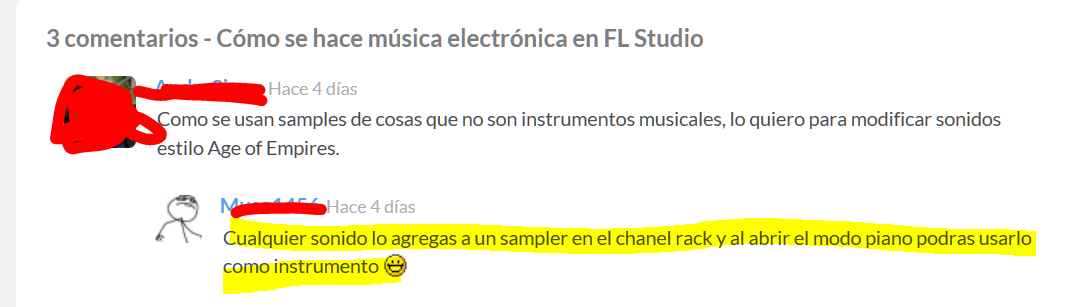
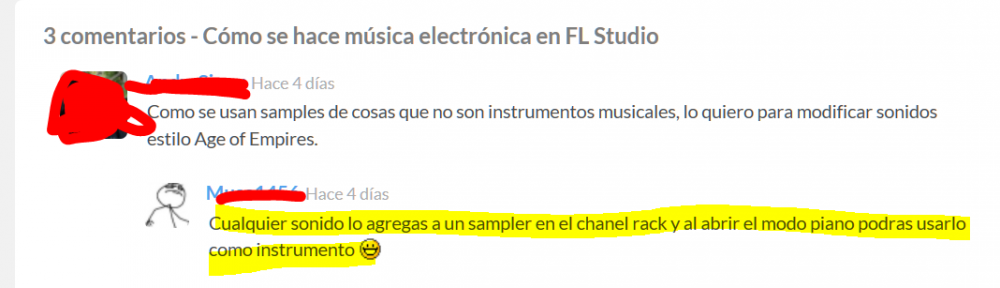
My question: its possibility use samples(basic sound from a library ) de objects that aren't musical instrumentation, I want modify sounds, like AoE.
-
Theory creating sounds for 0.A.D
Lion.Kanzen replied to Lion.Kanzen's topic in Tutorials, references and art help
Audio Edition. https://www.soundonsound.com/techniques/effects-all-you-need-know-and-little-bit-more -
Theory creating sounds for 0.A.D
Lion.Kanzen replied to Lion.Kanzen's topic in Tutorials, references and art help
When matching foley for an outdoor scene, you may have better luck using a shotgun microphone similar to what is used on location shoots. There may even be some times where a large-diaphram condenser microphone is the way to go. By all means, use your ears to decide! Image from Dare to be Digital Proximity and placement of the microphone in relation to the source of sound greatly affects how the foley is recorded. Close-up shots may require closer microphone placement, or put distance between the mic and sound source if you desire more room sound. Always remember to experiment with different microphone positions and choose the placement and preamp levels that best represent the visual in the film -
Theory creating sounds for 0.A.D
Lion.Kanzen replied to Lion.Kanzen's topic in Tutorials, references and art help
-
Theory creating sounds for 0.A.D
Lion.Kanzen replied to Lion.Kanzen's topic in Tutorials, references and art help
The Foley. Gathering material. https://www.premiumbeat.com/blog/recording-foley-and-sound-effects-the-fundamentals/ The sound effects from the 1960s Star Trek TV show are the same as in the latest Trek movie. Why? Because you know them as well as the scent of grandma's cookies. Have you ever recognized a sound effect in a movie or television show? Close you eyes and imagine the sound of the doors opening on the bridge in Star Trek. Listen for the PING that emanates throughout. Hear that musical tinkling sound as Scotty beams the captain aboard. Sounds we've heard since the '60s are as recognizable as a heartbeat. Just like seeing a filter Photoshop filter you've used before, every sound effect has a signature that makes it easier to identify. The truth is that, just like you, the big productions grab sound effects as needed from effect libraries. It's entirely possible they're using the same library you have. Our challenge this month is to break free of the sameness of effects libraries and create something uniquely our own. You probably have all the tools already, like an audio editor bundled with your video editing software, and if you don't, there are very cost-effective options we can share. As every professional filmmaker and videographer knows, even the most gorgeous footage and brilliant camera work can lose power when unaccompanied by sound. For maximum emotional impact, foley sound, like ADR, must match the actions in the video that was filmed. Here are some tips and tricks for recording foley and sound effects. Why Sound Effects? On the surface, sound effects may seem unnecessary. Can't we just record the voices and sounds as we shoot and present a completely honest soundtrack? You can do that, but I think you'll be disappointed with the results. In the enhanced reality of Hollywood, it's common to replace almost every sound - from main dialog to the smallest squeak. Your viewers grew up expecting that type of sound as they watch various forms of media. While a completely organic soundtrack is possible, it's the exception rather than the rule. The good news is that you can create big sounds for your productions, too. There is an art to it, but the basics aren't all that hard. What Gear do I Need? First, you'll need some recording equipment; specifically, an audio recorder, a microphone or two and a good pair of headphones. Audio recorders take many forms these days. A laptop or netbook computer with an audio interface is a very nice, portable way to gather sound effects. Using an audio editor Adobe Audition, Sony Sound Forge or a number of other software packages, you'll have a fully mobile recording studio. If you're short on software, look for Nero's Wave Editor (the audio editor bundled with their disc-burning package) or download the freeware Audacity. Both work great for basic recording and editing. Assuming your camcorder has an external microphone jack; it also serves as a good, basic audio recorder. Even the tiny Kodak Zi8 has a mic jack and will work well in a pinch. If you'd prefer a more dedicated solution, consider the Zoom H2. For under $200 you get four built-in mic capsules and the ability to record surround sound too. As for microphones, start with what you have. If you're already using a handheld or shotgun mic for productions, try that first. Even a lapel microphone works for sound effect gathering. Just make sure you use a windscreen if you're going outdoors. Do some test recordings and evaluate the sound quality. If you discover that a microphone upgrade is needed, at least you have a baseline to shop with. As for headphones, any good pair of isolating headphones should work. If you use headphones for video shoots (you do use headphones, right?) they are a great starting place for your sound effects recordings. Just like mics, start with your existing gear and use that as a reference point for any future upgrades. Get Real With Audio Many Hollywood sound effects are substitutes for the real thing - often bad substitutes. Car guys hate this. If a little scooter whizzes across the screen, it should be the sound of a scooter, not a Harley Davidson. So, when you're recording sound effects, try to be as authentic as possible. If your production showcases the hero stepping out of a giant Hummer H2 and slamming the door, don't record the door of your Toyota - record the Hummer. You get the point. As you're recording, there are several things to monitor. That door slam will start with a giant spike in sound level. Make sure you have plenty of recording headroom to eliminate the possibility of signal overload and distortion. If anything, record a little lower than normal - you can always bump the volume in post. Also, listen closely to the sound. Placing the mic close to the source may produce a sound with big impact, but that may not suit the scene. For safety, record several versions. Start with a few takes up close, then move the microphone back a bit and grab a few more takes. Finally, move the mic back even further - maybe somewhere close to the original camera position - and record some more. Later, when you edit, you stand a good chance of finding that one magical take that fits perfectly in your project. The Sound of Everyday Stuff Of course, you don't have to go outside for all your sound effects. Common household noises come in handy too. Even if you don't need them today, practice recording some appliances around the house. See if you can master recording the shower or the fireplace crackling. Stick a mic by a soda can and record the process of opening the drink and pouring it into a glass. If you'd like to experiment with Foley sound effects, try punching a couch cushion or a beanbag chair. These sounds can substitute for flying fists in a fight scene. Just record something so you can take it to the computer and experiment. Out of This World Legend has it that in his 1938 Halloween radio presentation War of the Worlds, Orson Welles was looking for just the right eerie creaky sound for that one dramatic moment when the metal hatch of the Martian space ship's door opened. Not having a sound FX library at hand, he and his audio engineers went looking to create their own out-of-this-world sound. They finally found just the right fit: a mayonnaise jar being slowly opened while hovering inside a toilet bowl. When you take away the visuals, sometimes the audio can fit just right and the audience has no idea. Some examples include putting cornstarch in a leather pouch for a snow-crunch effect, balling up cellophane for a fire-crackling effect, and a pair of gloves for a bird-flapping-wings effect. Another good idea that artists don't often think of is reversing sounds that you have recorded using an audio-editing program on your computer. Sounds such as piano string hits, crystal glass hits, and human voices can make for interesting effects when played in reverse. They can add emphasis to moving titles and graphics and can even give a sense of foreboding in horror films. Foley Objects Foley artists use many objects to achieve accurate depiction of the visual. Depending on the genre of the film, anything and everything is fair game. Before recording however, the first step entails reviewing the film and compiling a list of sound effects in the order they are seen. Next, the foley artist must determine what objects are appropriate for each specific sound effect. There are a few tried-and-true objects and techniques Hollywood foley artists have used for decades including: Thin sticks and dowel rods produce excellent whooshing SFX Old chairs and stools are perfect for controlled creaking Heavy-duty stapleguns serve for excellent gun noises Roll up a large phonebook for realistic body punches Twist and snap sticks of celery for convincing bone breaks Corn starch inside a leather pouch makes the sound of snow crunching Cut a coconut in half and line them with a soft material for a horse walking Ball up and walk over old audio tape for the sound of grass footsteps Locate an old car door or fender to produce metal and car crash sounds Flap a pair of cleaning gloves for the sound of realistic bird wings Here’s an excellent video featuring Emmy nominated Foley Artist Caoimhe Doyle demonstrating some of these techniques. -
Introduction https://en.wikipedia.org/wiki/Sound_effect https://en.wikipedia.org/wiki/Foley_(filmmaking) http://www.epicsound.com/sfx/
-
@mimo @Sandarac
-
===[TASK]=== Stables, Workshops, and Ranges
Lion.Kanzen replied to LordGood's topic in Official tasks
Eycandy -
Making Mountains (Realistic or Simple)
Lion.Kanzen replied to Bigtiger's topic in Scenario Design/Map making
@Skhorn any other advice? -
-
Roman Empire vs. Han China
Lion.Kanzen replied to jonbaer's topic in Introductions & Off-Topic Discussion
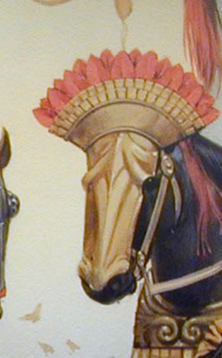
China have mercenaries like Mongolian Tribes, like Xiongnu. and Cataphract. -
Rae imagen, the soldier obviously.
-
===[TASK]=== Stables, Workshops, and Ranges
Lion.Kanzen replied to LordGood's topic in Official tasks
SW or Stable, mine. -
Not yet because pathfinder.
-
Great.
-
===[COMPLETED]=== Athena Parthenos Statue
Lion.Kanzen replied to Mythos_Ruler's topic in Completed Art Tasks
There are placeholder icons from AoM for example.. -
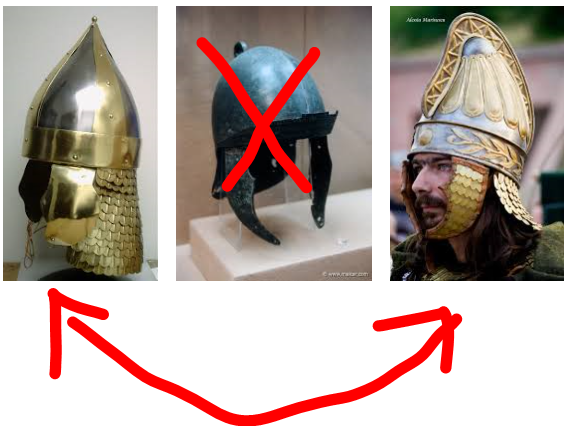
-
===[COMMITTED]=== Update Camel Units
Lion.Kanzen replied to wowgetoffyourcellphone's topic in Completed Art Tasks
I know is medieval 12 century (Crusades to Holy land timeframe). only I was tasting your knowledge is very good.- 162 replies
-
- 1
-

-
- animations
- modeling
- (and 1 more)
-
===[COMMITTED]=== Update Camel Units
Lion.Kanzen replied to wowgetoffyourcellphone's topic in Completed Art Tasks
You mean Saraceni? -
===[COMMITTED]=== Update Camel Units
Lion.Kanzen replied to wowgetoffyourcellphone's topic in Completed Art Tasks
I love mercenaries... http://www.twcenter.net/forums/showthread.php?710419-Garamantian-Free-LC-new-units-(Finished!)